Squarespace Inventory Integrations: How to Sync Stock with Amazon, eBay and More

Squarespace makes beautiful online stores. It does not, however, make multichannel selling easy.
If you're running a Squarespace store and selling (or want to sell) on Amazon, eBay, Etsy, or other marketplaces, you've probably discovered the gap: Squarespace has no native integrations for syncing inventory with external sales channels. Every sale on Amazon requires a manual stock update on Squarespace. Every new product listing means duplicating work across platforms.
This article breaks down your options, from free workarounds to fully automated solutions, and helps you decide which path makes sense for your business.
What Squarespace's Built-In Inventory System Can (and Can't) Do
Squarespace offers basic inventory tracking out of the box. Here's what it covers.
Built-in features:
- Track stock quantities per product and per variant
- Low-stock alerts via email notifications
- Automatic "Sold Out" labels when quantity hits zero
- Inventory status visible in the Products panel
- Basic inventory data in analytics
What it can't do:
- Sync inventory with any external marketplace (Amazon, eBay, Walmart, Etsy)
- Connect to warehouse management systems
- Provide multi-location inventory tracking
- Offer real-time inventory feeds via API to other platforms
- Handle bundle or kit inventory (selling a set that deducts from individual component stock)
For a single-channel store, these built-in features are adequate. The moment you add a second sales channel, they become the bottleneck.
Why Squarespace Doesn't Play Well With Marketplaces
The root issue is technical. Squarespace's commerce API has historically been more limited than competitors like Shopify or WooCommerce.
Specific limitations:
- API access: Squarespace introduced a Commerce API, but it's read-heavy with limited write functionality for inventory. Third-party platforms can pull data from Squarespace more easily than they can push updates to it.
- Webhook support: Limited webhook events compared to Shopify (which has webhooks for virtually every commerce event). This makes real-time sync harder to implement.
- Product variant structure: Squarespace handles variants through option combinations rather than independent variant records. This creates mapping challenges when syncing with marketplaces that treat each variant as a separate entity.
- No app ecosystem for commerce: Unlike Shopify's App Store with thousands of commerce integrations, Squarespace's extension marketplace has minimal inventory management options.
These aren't criticisms of Squarespace, the platform excels at what it was built for (beautiful, easy-to-manage websites). But multichannel commerce wasn't the primary use case.
The Pain of Manual Multichannel Management
Let's quantify what managing inventory manually across Squarespace + one or two marketplaces actually looks like.
Daily tasks for a 200-SKU catalog on Squarespace + Amazon:
- Check Amazon orders → update Squarespace stock: 30-45 minutes
- Check Squarespace orders → update Amazon stock: 15-20 minutes
- Reconcile discrepancies between platforms: 15-30 minutes
- Update new products or price changes on both platforms: 20-40 minutes
- Handle inventory-related customer issues: 15-30 minutes
Total: 1.5 to 2.5 hours daily. That's 45-75 hours per month spent on data entry that could be automated. At a $25/hour labor cost, you're spending $1,125-$1,875/month on manual sync, before accounting for the overselling errors that inevitably occur.
"Finally, a solution that actually prevents overselling during Black Friday.", James Chen, E-commerce Director, Urban Wear
Four Integration Options Compared
Option 1: Manual CSV Exports/Imports
How it works: Export inventory data from Squarespace as a CSV file, modify it to match the target marketplace's format, and upload it.
Process:
- Export products from Squarespace (Products → Export)
- Reformat CSV columns to match Amazon/eBay upload templates
- Upload to the marketplace's bulk listing tool
- Repeat in reverse for stock updates
Pros:
- Free
- No technical knowledge required
- Works with any marketplace that accepts CSV uploads
Cons:
- Extremely time-consuming
- Stock data is stale by the time you upload it
- High error rate in manual data reformatting
- No real-time sync whatsoever
- Doesn't scale beyond ~100 SKUs
Option 2: Zapier/Make Automations
How it works: Connect Squarespace and marketplace APIs through automation platforms to trigger inventory updates when events occur.
Example workflow (Zapier):
- Trigger: Squarespace order placed
- Action: Reduce stock count on Amazon listing
Pros:
- Automated, reduces manual work significantly
- Relatively affordable ($20-$70/month)
- Can connect multiple services in a workflow
Cons:
- Squarespace's limited webhooks make triggers unreliable
- Sync delays of 1-15 minutes (polling-based, not instant)
- Writing inventory back to Squarespace is difficult due to API limitations
- Workflows break when APIs change, requires ongoing maintenance
- No unified order management
Option 3: Squarespace Extensions
How it works: Install a third-party extension from Squarespace's marketplace that adds inventory sync capabilities.
Current reality: As of 2026, Squarespace's extension marketplace has very few dedicated inventory sync tools for multichannel selling. The available options tend to be limited in scope, often supporting only one marketplace or offering basic CSV-based sync rather than real-time inventory updates.
Pros:
- Easy installation through Squarespace dashboard
- Designed to work within Squarespace's ecosystem
Cons:
- Very limited selection
- Most extensions offer basic functionality only
- Marketplace coverage is spotty (Amazon might be supported, eBay might not)
- Reliability varies, read reviews carefully
Option 4: Dedicated Multichannel OMS
How it works: A centralized inventory and order management platform connects to Squarespace plus all your marketplaces, maintaining a single inventory pool with real-time sync to every channel.
Pros:
- Near real-time sync across all connected channels
- Single dashboard for all orders regardless of source channel
- Automated inventory allocation with safety buffers
- SKU mapping across platforms with different product ID systems
- Scales to any number of channels and SKUs
- Professional support and ongoing platform maintenance
Cons:
- Highest monthly cost ($100-$500 depending on volume)
- Requires initial setup and data mapping
- Another platform to learn
Full Comparison Table
| Feature | CSV Export | Zapier/Make | Extensions | Multichannel OMS |
|---|---|---|---|---|
| Monthly cost | $0 | $20-$70 | $10-$50 | $100-$500 |
| Sync speed | Hours/days | 1-15 min | Varies | Under 60 sec |
| Oversell prevention | None | Partial | Partial | Yes |
| Max practical SKUs | ~100 | ~300 | ~500 | Unlimited |
| Channels supported | Any (manual) | Limited by Zaps | 1-2 | 10+ |
| Unified order view | No | No | Rarely | Yes |
| Setup difficulty | Easy | Moderate | Easy | Moderate |
| Ongoing effort | Very high | Medium | Low-medium | Low |
| Scales with growth | No | Poorly | Somewhat | Yes |
Step-by-Step: Connecting Squarespace to Amazon and eBay
Here's the practical setup process using a centralized multichannel platform.
Step 1: Prepare Your Squarespace Store
Before connecting to any integration tool, get your Squarespace data in order.
Checklist:
- Every product has a unique SKU (Settings → Product → SKU field)
- Stock quantities are accurate and up to date
- Product variants are properly structured (each size/color combination has its own SKU)
- Product descriptions, images, and pricing are finalized
- Categories and tags are consistent
Common Squarespace issue: Many Squarespace stores don't use SKUs at all: the field is optional and often left blank. Before integrating, assign a unique SKU to every product and variant. Use a consistent format like: CATEGORY-NAME-VARIANT (e.g. TS-CLASSIC-BLU-L for a classic blue t-shirt, size large).
Step 2: Generate Squarespace API Credentials
Navigate to Settings → Developer → API Keys in your Squarespace dashboard. Create a new API key with Commerce Read and Commerce Write permissions.
Note: You need a Squarespace Business plan or higher for API access. Basic and Personal plans don't include API functionality.
Step 3: Connect Squarespace to Your OMS
Use your API credentials to establish the connection. The platform will import your product catalog, including all variants, stock quantities, and pricing.
What to verify after import:
- All products and variants are present
- Stock quantities match your Squarespace dashboard
- Pricing is correct
- Product images transferred properly
- Variant options (size, color, etc.) are mapped correctly
Step 4: Connect Amazon and eBay
Link your Amazon Seller Central and eBay accounts through their respective OAuth authentication flows. Both platforms have well-documented API access that most multichannel tools handle smoothly.
For Amazon:
- You'll need your Amazon Seller Central credentials
- Grant the platform's app authorization through Amazon's developer portal
- Select which Amazon marketplace(s) to connect (US, UK, EU, etc.)
For eBay:
- Authenticate through eBay's OAuth flow
- Enable the "Out-of-stock" option in eBay Seller Hub (keeps listings active at zero quantity)
- Select business vs. personal account type
Step 5: Map Products Across Platforms
Here's where the work pays off. Map your Squarespace SKUs to corresponding Amazon ASINs and eBay listing IDs.
Three mapping scenarios:
- Products already listed on all platforms: Map existing Squarespace SKUs → Amazon ASINs → eBay item numbers.
- New marketplace listings: Use the OMS to create Amazon/eBay listings from your Squarespace product data, with field mapping for each marketplace's requirements.
- Partial overlap: Some products on all channels, some on only one or two. Map what exists, create what's missing.
A strong multichannel platform will auto-match products that share the same SKU or barcode across channels, saving significant manual mapping time.
Step 6: Configure Inventory Allocation
Set rules for how your inventory pool is distributed across channels.
Recommended starting configuration:
- Total inventory visible on all channels (shared pool)
- 10% safety buffer held back (not shown on any channel)
- Low-stock alerts at 20% of total quantity
- Auto-replenishment triggers to your supplier at configurable thresholds
Example: You have 200 units of a product. With a 10% buffer:
- 180 units available across all channels
- When a sale occurs on Amazon, all channels update to 179
- At 40 units (20% threshold), you get an alert to reorder
Step 7: Set Up Order Workflows
Configure how orders from each channel flow through your fulfillment process.
- Squarespace, Amazon, and eBay orders all appear in one queue
- Apply consistent picking/packing processes regardless of channel
- Shipping labels generated from one interface
- Tracking numbers pushed back to the originating platform
- Customer notifications triggered based on channel-specific templates
Squarespace-Specific Challenges and Workarounds
Limited Write-Back Capability
Squarespace's API has more restrictions on writing data back than Shopify or WooCommerce. This means:
- Inventory updates from external channels may experience slightly longer sync times to Squarespace compared to syncing *between* Amazon and eBay.
- Order status updates from your OMS may not fully reflect in the Squarespace dashboard. You'll manage order status primarily in your OMS rather than in Squarespace.
Workaround: Use your OMS as the primary operations dashboard. Treat Squarespace as a sales channel, not as your operations hub.
Product Variant Limitations
Squarespace allows up to 250 variants per product but structures them as option combinations (e.g., Color × Size) rather than independent SKUs. When syncing with Amazon, where each size/color combination is its own ASIN, the mapping can be complex.
Workaround: Create explicit variant-to-ASIN mappings in your OMS during the setup phase. This takes time upfront but prevents sync errors long-term.
Order Data Differences
Squarespace orders contain different data fields than marketplace orders. For example:
- Squarespace includes custom form fields that marketplaces don't
- Amazon includes FBA-specific data that Squarespace doesn't support
- eBay includes buyer messaging and Best Offer data that has no Squarespace equivalent
Workaround: Configure your OMS to normalize order data across channels, keeping channel-specific fields as metadata rather than core fields.
Managing Returns and Restocks
Returns are the inventory management task that most multichannel sellers handle worst. Here's how to get it right across Squarespace and marketplaces.
The problem: A customer buys on Amazon. Returns the item. You restock it. But does that restocked unit show up as available on Squarespace and eBay? Without automation, it doesn't, unless someone manually adds it back.
The solution:
- Returns processed in your OMS update the shared inventory pool
- Restocked items automatically reflect across all channels
- Damaged returns are marked as unsellable and removed from available inventory
- Refunds are tracked per channel for accounting purposes
A centralized system ensures that every inventory change syncs across channels in real time, whether that change comes from a sale, a return, a restock, or a manual adjustment.
When to Stay on Squarespace vs. Migrate
This is the question most Squarespace multichannel sellers eventually face. Here's a framework for the decision.
Stay on Squarespace If:
- Your website is primarily a brand/content hub with commerce as a secondary function
- Design quality and brand presentation are your top priority
- You're selling on 2-3 channels total and a centralized OMS handles the integration
- Your catalog is under 500 SKUs
- You don't need complex commerce features (subscriptions, B2B pricing, advanced discounts)
Consider Migrating to Shopify or WooCommerce If:
- You're adding 4+ marketplace channels and need deeper native integrations
- Your catalog is growing beyond 1,000 SKUs with complex variant structures
- You need advanced commerce features (B2B, wholesale, complex promotions)
- Your integration costs on Squarespace exceed what you'd pay on a platform with better native marketplace support
- You're experiencing persistent sync issues due to Squarespace's API limitations
The Middle Path
Many brands keep Squarespace for their website and use a multichannel OMS to handle all commerce operations behind the scenes. Squarespace remains the customer-facing storefront, while the OMS handles inventory, orders, and marketplace management. This gives you Squarespace's design strengths without its commerce limitations.
Building Your Multichannel Stack
Here's a recommended progression for Squarespace sellers expanding to marketplaces.
Phase 1 (Month 1): Connect Squarespace + one marketplace (usually Amazon) through a multichannel platform. Start with your top 50 products. Monitor sync accuracy for two weeks.
Phase 2 (Month 2): Add your second marketplace (eBay, Etsy, or Walmart depending on your category). Expand to your full product catalog.
Phase 3 (Month 3-4): Optimize inventory allocation based on channel performance data. Set up automated reorder triggers. Implement channel-specific pricing strategies.
Phase 4 (Month 5+): Evaluate whether to add more channels, expand to international marketplaces, or invest in deeper automation (automated repricing, AI-powered demand forecasting, advanced shipping optimization).
The brands that grow successfully across channels aren't the ones using the fanciest tools. They're the ones that build reliable, repeatable operations, starting with accurate inventory that syncs in real time, no matter where the sale happens.
Frequently Asked Questions
No. Squarespace has no native inventory sync with Amazon or any external marketplace.
Basic stock tracking and alerts only. Cannot sync with marketplaces, support multi-location inventory, or handle bundles.
Not necessarily. Keep Squarespace as your storefront and use a centralized OMS for all commerce operations.
Related Articles
View all
Inventory Automation That Actually Saves Operations Time
Inventory automation for ecommerce operations past manual reconciliation. The categories that produce compounding labor savings at scale.
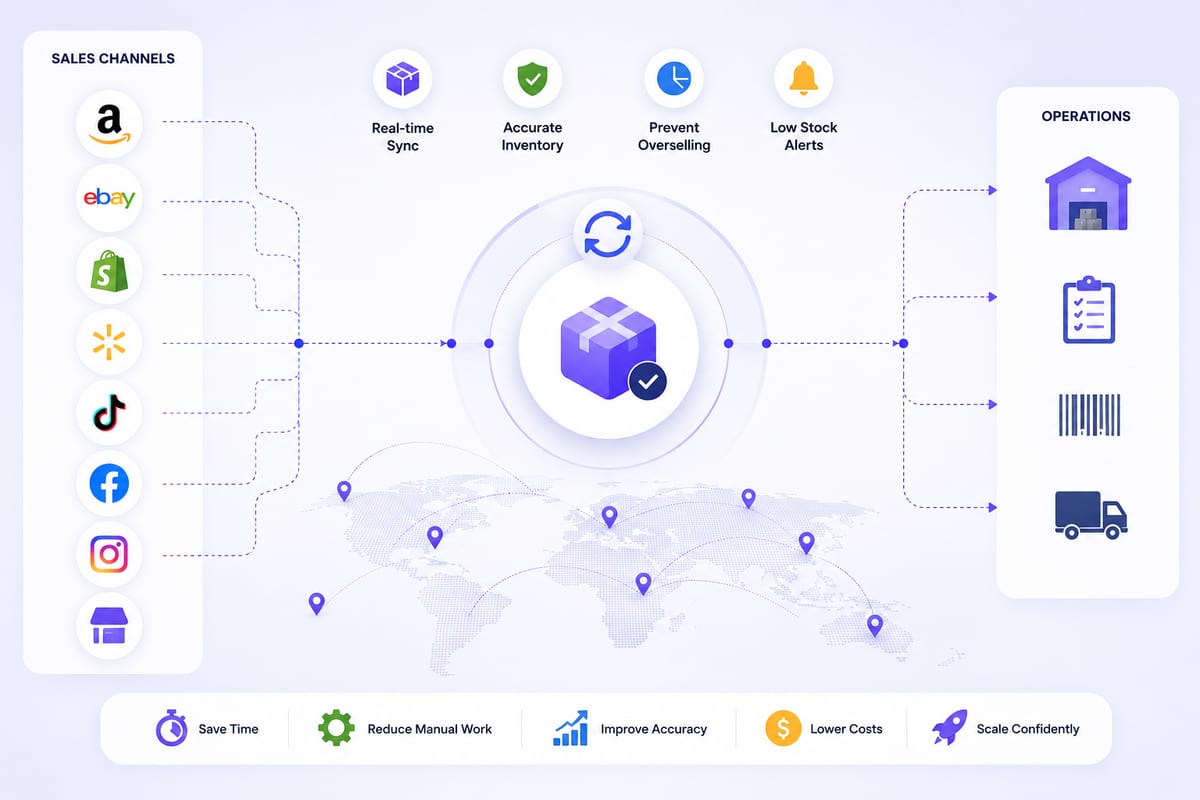
Cross Channel Inventory Management Without the Chaos
Cross channel inventory management for operations running on multiple platforms. The architectural patterns that prevent coordination breakdowns.
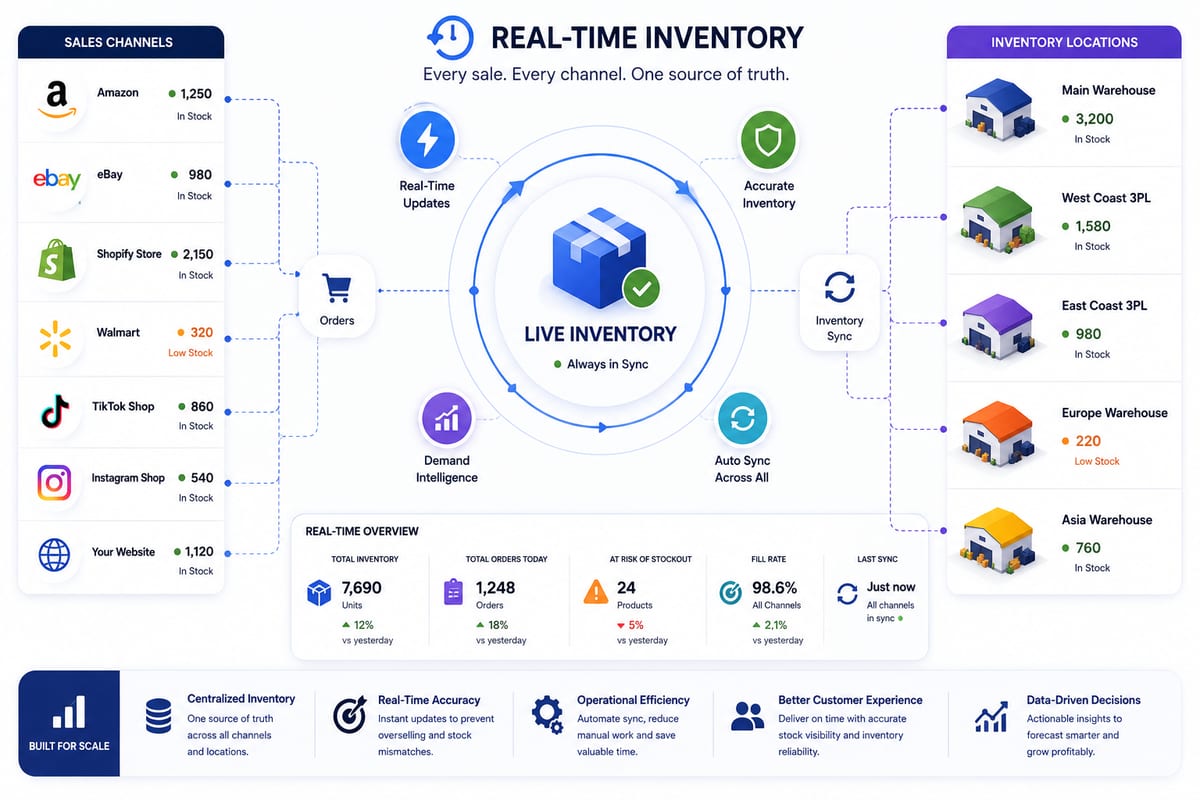
Real Time Inventory Management at Multi-Channel Scale
Real time inventory management requirements for multi-channel ecommerce. The architecture that delivers sub-5-second propagation under load.